In our digital lives, privacy often feels like a trade-off: convenience on one side, security on the other. We click “Allow” on app permissions without a second thought, vaguely aware we’re giving something away, but unsure of what or to whom. Apple has built a powerful counter-argument into your iPhone 17 and iOS 18: you don’t have to choose. You can have a phone that’s both incredibly useful and fiercely protective of your data. But Apple’s best privacy tools aren’t always shouting from the rooftops. They’re tucked away in settings menus, waiting for you to activate them. This isn’t about paranoia; it’s about moving from a passive, default-level of security to an active, informed one. Let’s explore the advanced settings that transform your iPhone from a smart device into a truly private one.
1: The Digital Audit – Seeing What Your Apps Are Really Doing
You’d never let a stranger follow you around, listen to your conversations, and read your address book. But with poorly managed app permissions, that’s essentially what you’re allowing. iOS 18 gives you a crystal-clear way to see this activity.
The App Privacy Report: Your Digital Detective
This feature is a game-changer for awareness. Find it in Settings > Privacy & Security > App Privacy Report. When you enable it, your iPhone silently logs all attempts by apps to access your sensitive data—location, camera, microphone, photos, contacts, and more—over the last seven days.
- What You’ll See: A graph showing “Data & Sensor Access.” Tap into it. You might find that your social media app accessed your microphone 14 times last week, not just when you were recording a Story, but at odd, quiet moments. You might see a weather app pinging your location every hour, even though it only needs it once for your forecast.
- The “App Network Activity” Section: This is even more revealing. It shows which websites your apps are contacting in the background. That harmless flashlight app? It might be phoning home to three different ad-tracking domains. This report strips away the mystery and shows you the raw data trails.
Action from Awareness: The Permission Purge
Armed with this report, go to Settings > Privacy & Security. Go category by category—Location Services, Contacts, Photos, Microphone, Camera. Review the list of apps under each. For each app, ask: “Does this app need this access to function?”
- A maps app needs “Precise Location” and “While Using.”
- A photo editing app needs “Photos” access, but likely not “All Photos”—you can set it to “Selected Photos.”
- A note-taking app has zero business needing your microphone or contacts.
- The “Never” and “Ask Next Time” options are your friends. Default to the most restrictive setting and see if the app still works. You’ll be shocked at how many do just fine.
2: The Personal Vault – Locking Down Your Digital Life
Beyond apps prying, there’s the risk of someone physically accessing your phone, or of data leaking from services you use.
The Fortified Photo Library
Your “Hidden” and “Recently Deleted” albums are now locked behind Face ID or your passcode by default—a huge, simple win. But go a step further. In Settings > Photos, ensure “Use Face ID” is on. Now, no one can browse your private media without your explicit biometric approval. For ultra-sensitive images (like passports, tax documents, or medical info), consider not keeping them in Photos at all. Use a Locked Note instead (more on that below).
The “Sign in with Apple” Advantage
Whenever you see this option on a website or in an app, use it. It’s not just another login button. It does two brilliant things:
- It hides your email. Apple creates a unique, random relay email address that forwards to your real one. The company never sees your actual address. If that relay address starts getting spam, you can disable it with one tap, without changing your real email.
- It’s more secure. It uses your already-secure Apple ID and two-factor authentication, so you’re not reusing a password on a potentially less-secure site.
Safari’s Privacy Shields
Your web browser is a massive privacy leak. Safari on iOS 18 fights back.
- Intelligent Tracking Prevention: This is always on, blocking cross-site trackers from following you around the web to build an advertising profile.
- Hide IP Address: Go to Settings > Safari > Advanced > Hide IP Address. You can set it to hide from trackers only, or from trackers and websites. This prevents sites from using your IP address to pinpoint your approximate location or identify your network.
- Privacy Report: Tap the “AA” icon in the Safari address bar, then “Privacy Report.” See a list of all the trackers Safari has blocked on the current page. It’s eye-opening and satisfying.
Mail Privacy Protection: Becoming Invisible to Senders
Email marketers often embed invisible pixels in emails to track when you open them, from where (your IP address), and on what device. Turn this spying off. Go to Settings > Mail > Privacy Protection. Turn on “Protect Mail Activity.” Now, when you receive an email, Apple’s servers pre-load all the content (including those tracking pixels) before it reaches you, hiding your IP address and making it look like every email was opened at the same time from the same place: an Apple server. You become a ghost in their analytics.
3: The Emergency Toolkit – Safety Check and Secure Notes
Apple has thoughtfully built features for extreme, but important, scenarios.
Safety Check: The Digital Emergency Exit
This is one of the most important and compassionate features in any operating system. Found in Settings > Privacy & Security > Safety Check, it’s designed for people who need to immediately sever digital ties—such as someone leaving an unsafe relationship, escaping harassment, or after a device theft.
- What it does: It walks you through a rapid, guided process. In minutes, you can:
- Review and revoke location sharing with people in Find My.
- Review and reset all app permissions (camera, microphone, location, etc.).
- Review and sign out of your Apple ID on other devices you don’t control.
- Change your Apple ID password.
- Emergency Reset: The fastest option does all of the above in one action. It’s a nuclear option for your digital privacy, giving you immediate and complete control back. Everyone should know this exists, even if you never need it. It’s your ultimate safety net.
Secure Notes: Your Digital Safe-Deposit Box
The Notes app is more powerful than you think. You can create entire folders locked behind Face ID.
- Create a new note or folder.
- Tap the “More” (…) button and select “Lock.” You’ll set a password (separate from your phone passcode) and enable Face ID.
Now, anything in that note or folder is encrypted and inaccessible without biometrics. This is the perfect place for:
- Scans of passports, social security cards, and insurance documents.
- Wi-Fi passwords for your home network.
- Software license keys.
- Private journal entries or sensitive work ideas.
It’s more convenient and better organized than a third-party app, and it syncs securely via iCloud.
4: The Foundational Layer – iCloud+ and Advanced Data Protection
For the ultimate in security, consider upgrading your iCloud plan and enabling its most advanced feature.
iCloud+ Benefits: A paid iCloud plan isn’t just about storage. It includes:
- iCloud Private Relay (like a built-in VPN-lite for Safari traffic).
- Hide My Email (to create those random relay addresses on the fly).
- Custom Email Domain (for a more professional look with built-in privacy).
Advanced Data Protection: The Gold Standard
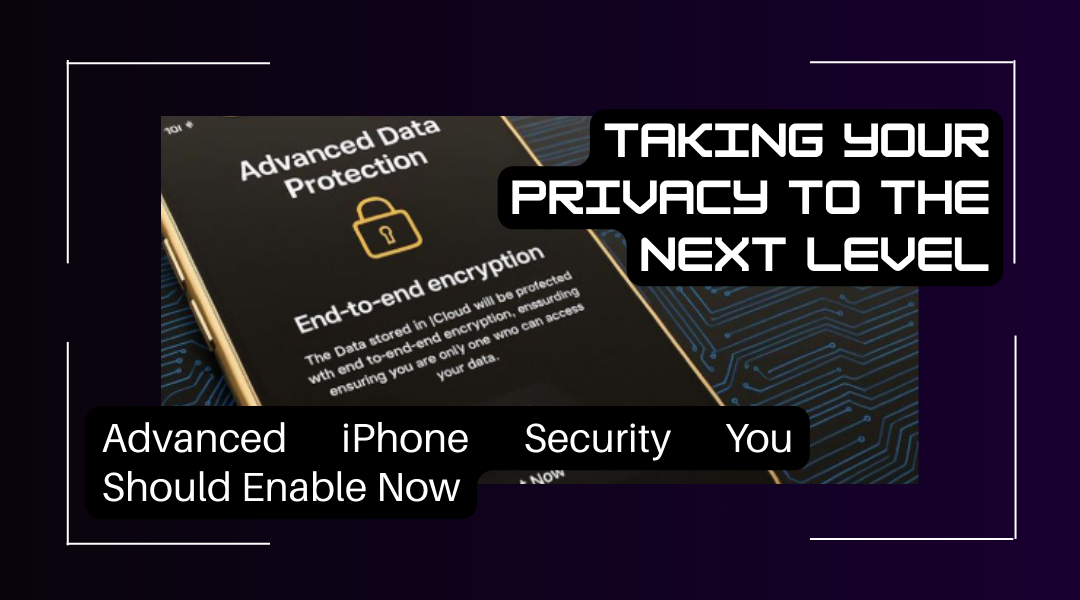
This is the final boss of iPhone privacy. In Settings > [Your Name] > iCloud > Advanced Data Protection, you can turn this on. What it does: By default, Apple holds encryption keys for 14 of your iCloud data categories (like Notes, Photos, and device backups), so they can help you recover data if you lose your password. With Advanced Data Protection turned on, you hold the only keys for those categories. Not even Apple can decrypt and access your data. If you lose your password and your recovery methods, that data is gone forever. It’s the ultimate trade-off: absolute, end-to-end encryption for maximum security, in exchange for you taking full responsibility for recovery. For journalists, activists, or anyone with highly sensitive data, it’s essential. For the average user, it’s the pinnacle of trusting no one but yourself.
Conclusion: Privacy as a Practice, Not a Setting
Activating these features isn’t a one-time task; it’s the beginning of a more conscious relationship with your device. It shifts your mindset from “What can my phone do?” to “What is my phone doing, and for whom?”
Start with the audit (App Privacy Report). Let the data surprise you and guide your permission purge. Then, fortify your weak points—lock your photos, use Mail Privacy, choose “Sign in with Apple.” Get familiar with your emergency tools (Safety Check, Locked Notes) so they’re there if you need them. Finally, consider the ultimate encryption of Advanced Data Protection if your threat model calls for it.
This journey makes your iPhone 17 something rare in the modern digital world: a tool that truly works for you, on your terms. It respects your boundaries, protects your secrets, and gives you unparalleled control over your digital footprint. In an age of data as currency, these settings are how you opt out of the trade. They transform your phone from a smart device into a trustworthy companion. That’s not just advanced security; that’s peace of mind, built in.